SpanZeto / Documentation / clipboard Pro
Usage - Clipboard Pro
Accessing the Clipboard History
- Copy one or more elements as you normally would (Ctrl+C)
- Press Ctrl+Shift+V at any time to open the history menu
- Select the element you want to paste
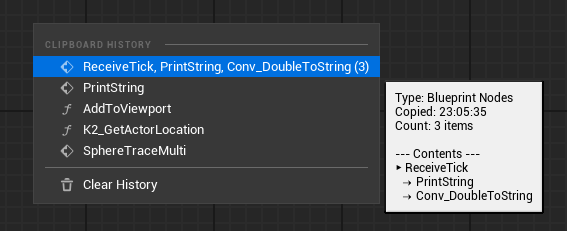
Menu Information
Each menu entry shows:
- Icon: Indicates the content type (event, function, macro, variable, etc.)
- Name: Description of the copied content
- Count: If multiple elements were copied, shows the number in parentheses
Detailed Preview
When hovering over a menu entry, a tooltip appears with:
- Content type
- Time when it was copied
- Source Blueprint or level (if available)
- Structured content listing (for Blueprint nodes)
--- Contents ---
▶ BeginPlay
  → GetPlayerController
  → CreateWidget
  → AddToViewport
Clear History
At the bottom of the history menu, select Clear History to delete all saved elements.
Need help?
If you have issues, join our Discord for support.