SpanZeto / Documentation / global search Pro
Usage - Global Search Pro
How to Use Global Search Pro
- Locate the Global Search Pro search bar in the editor.
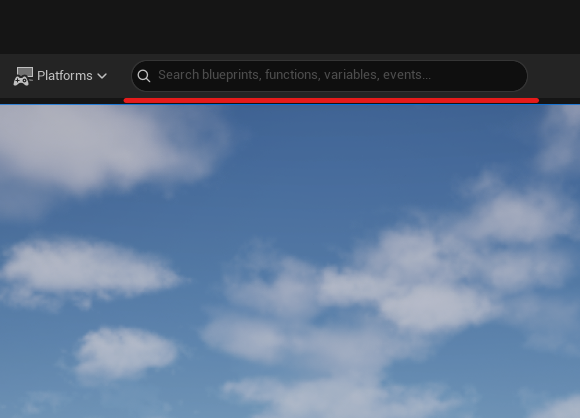
- You can type directly the element you want to search for. Global Search Pro will show real-time results filtering through any type of element plus variables, functions and custom events in your Blueprints.
- Results appear instantly as you type.
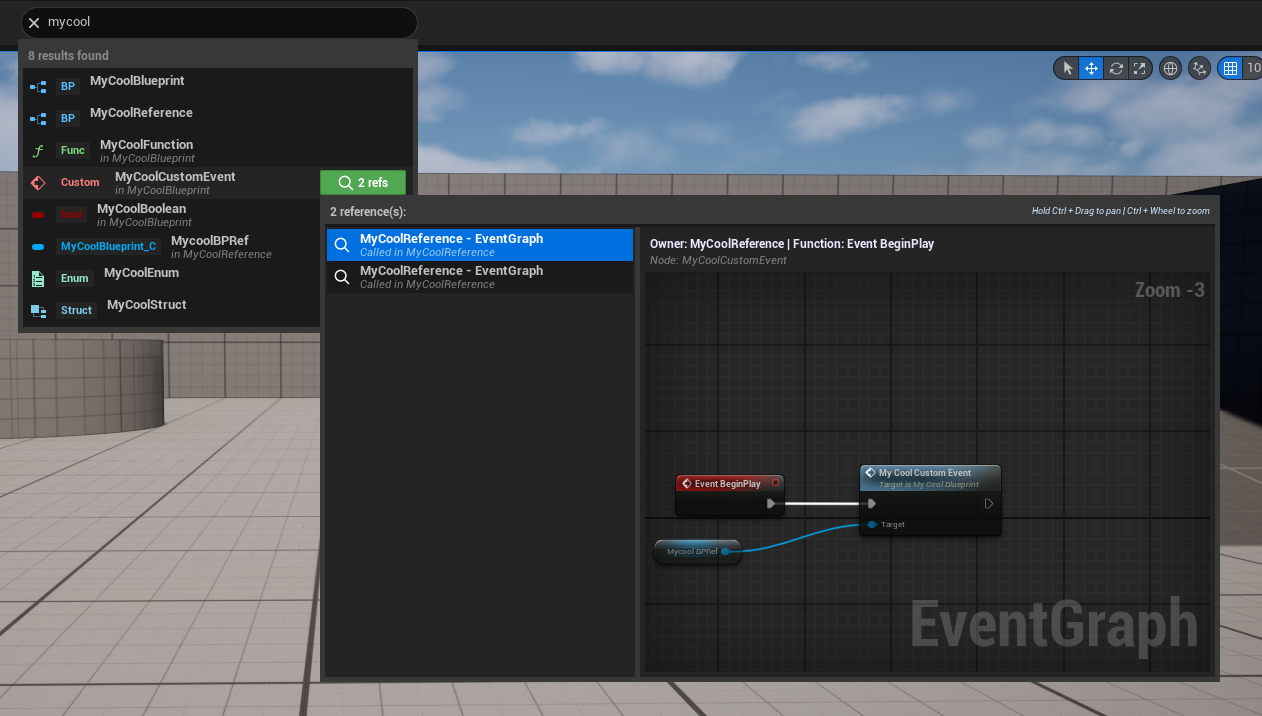
- Click on a result to open it. Global Search Pro will open the corresponding asset and, in the case of functions or custom events, navigate to them automatically.
- Keep typing to refine results; clearing the field resets the list.
- Use the filters panel above the list to enable/disable asset categories and Blueprint element types; results update instantly and your selection is preserved between editor sessions.
Indexing Plugin Content
Global Search Pro always indexes /Game. Starting with version 2.4, you can also selectively include content from enabled plugins.
- Open Edit → Project Settings.
- Go to Plugins → Global Search Pro.
- Under Indexing → Scope, enable Index Plugin Content.
- Add an entry to Plugin Content Paths and use the picker to select a plugin root or one of its subfolders.
- Click Re-index in Global Search Pro to rebuild the index with the new scope.
Why isn't a plugin listed?
The picker only shows enabled plugins that contain assets. Code-only plugins, or plugins declaring CanContainContent=false, do not have an indexable content folder and will not appear.
Important
Changing Index Plugin Content or Plugin Content Paths does not immediately modify the existing index. Run Re-index or restart the editor to apply the new scope.
Tips
- Use partial terms for broader searches
- Filter by asset type for more precise results
- Click on references to navigate directly to the element's usage
- Select only the plugin folders you need to keep indexing as lightweight as possible
Need help?
For questions or suggestions join our Discord.